






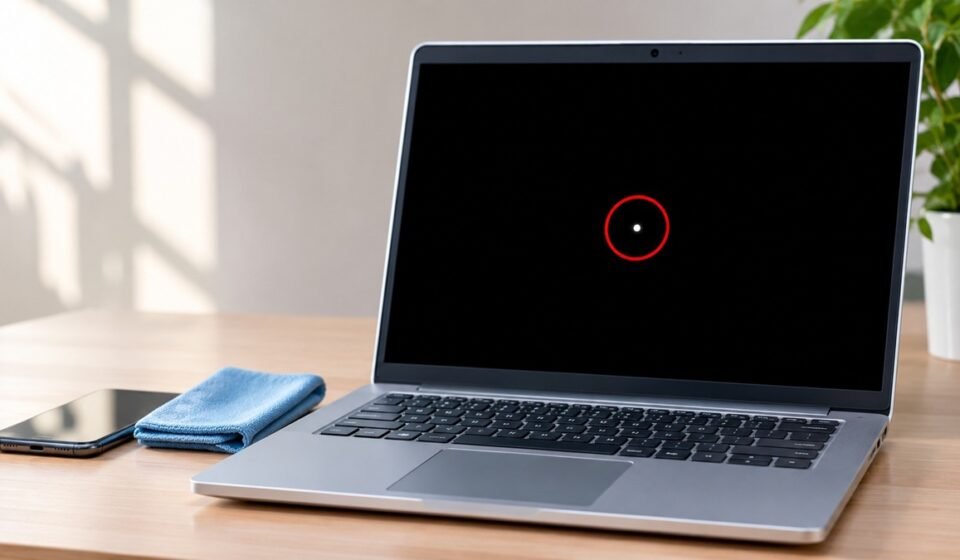

A white dot in laptop screen can be fixed at home only if it is a stuck pixel or a software or driver glitch. If it is a dead pixel or a damaged panel, the screen usually has to be repaired or replaced, and the quickest way to tell the difference is to check whether the dot also shows up in the BIOS or HP diagnostics screen.
Written by Aarav Kashyap, Chasale Cop | Last updated: November 2026
You open a blank Word document and there it is: a tiny bright dot that wasn’t there last week. Once you notice it, you can’t stop seeing it. This guide from Chasale Cop helps you find out what that dot really is, which fixes are worth your time, and what to do if it turns out to be a hardware fault.
In this guide:
- What a white dot on a laptop screen usually means
- A 5-step test to separate software problems from hardware problems
- Fixes that can actually work
- What to do about warranty and repair
- Mistakes that make the problem worse
Why Do White Dots Appear in a Laptop Screen?
Most white dots come from one of six causes. Each one needs a different fix, so don’t skip this part.
| What you see | Likely cause | Can you fix it yourself? |
|---|---|---|
| Tiny dot, always in the same spot, mostly visible on dark backgrounds | Stuck or hot pixel (always lit) | Sometimes |
| Tiny dark dot on a white background | Dead pixel (not lit) | No |
| Soft, cloudy bright patch, often near where something pressed the screen | Pressure mark or backlight issue | No |
| Small speck that moves or wipes off | Dust, lint or dried smudge | Yes |
| Dot that changes, moves or vanishes in Safe Mode | Graphics driver or software glitch | Yes |
| Several dots, lines or spreading spots, or damage after a drop | Panel or display cable fault | No |
People often call every dot a “dead pixel,” but the terms differ. A dead pixel stays dark. A stuck or hot pixel stays lit, and a lit white one is what most readers describe. This matters because only a stuck pixel has any chance of recovering without a repair.
White Dot in Laptop Screen: 5-Step Diagnosis (Takes 10 Minutes)
Do these in order. Each step narrows down the cause.
Step 1: Clean the screen and look closely
Shut down the laptop and unplug the charger. Wipe the screen gently with a dry microfiber cloth. If your screen is really dirty, lightly dampen the cloth with water, never spray liquid directly onto the display.
If the dot disappears, it was dust or a smudge. If it stays, move on.
Step 2: Test with solid colours
Open a full-screen black image, then white, red, green and blue. Any free online screen test or a plain coloured image will do. Watch how the dot behaves on each colour.
- A dot that is bright on black and invisible on white is usually a stuck pixel.
- A dot that is dark on white and invisible on black is usually a dead pixel.
- Take a phone photo of each result. You will need this if you contact HP.
Step 3: Check in Safe Mode
In Windows, hold the Shift key while clicking Restart, then choose Troubleshoot, Advanced options, Startup Settings and Restart. Press 4 to enter Safe Mode.
If the dot disappears or looks different in Safe Mode, the cause is likely software or a driver. If it stays exactly the same, it is more likely hardware.
Step 4: Check the BIOS and HP built-in diagnostics
This is the most useful test because it takes Windows out of the picture.
- Turn off the laptop and plug in the charger.
- Turn it on and tap the Esc key repeatedly to open the HP Startup Menu.
- Press F10 to open BIOS Setup and look at the screen. Or press F2 to open HP PC Hardware Diagnostics and run the Display (or Video) test under Component Tests.
Key names can vary slightly by model, so follow the on-screen menu if it differs. If the dot shows up here, Windows and your graphics driver are not the cause. It is almost certainly a panel problem.
Step 5: Try an external monitor
Connect your laptop to a TV or monitor using HDMI or USB-C.
- Dot only on the laptop screen: the laptop panel is the problem.
- Dots on both screens: the graphics driver or graphics hardware is the more likely cause.
What your results mean
| Result | Most likely cause | What to do next |
|---|---|---|
| Dot wipes off | Dust or smudge | Nothing more to do |
| Dot disappears in Safe Mode | Driver or software | Fix the driver (see below) |
| Dot visible in BIOS or diagnostics | Panel hardware | Warranty or repair route |
| Dot on laptop screen only, not on external monitor | Panel hardware | Warranty or repair route |
| Dot on both screens | Graphics driver or GPU | Update or reinstall drivers, then service if it persists |
Fixes That Can Work
Fix 1: Update or reinstall the graphics driver
Open Device Manager, expand Display adapters, right-click your graphics card and choose Update driver. Restart afterwards. If the dot started right after a driver update, choose Properties, then the Driver tab, then Roll Back Driver.
You can also run Windows Update and HP Support Assistant to install the latest display and BIOS updates. This only helps if the dot is a software glitch, so don’t expect it to remove a physical pixel defect.
Fix 2: Do a hard reset
This clears temporary hardware glitches. Disconnect the charger and any USB devices, hold the power button for about 15 seconds, then reconnect the charger and restart.
Fix 3: Try a stuck pixel fixer (with caution)
Pixel fixer tools, such as the website JScreenFix, flash rapid colours over the area to try to wake up a stuck pixel. Run it full-screen on the affected area for 10 to 30 minutes.
Be realistic about this one:
- It can work for a stuck pixel and does nothing for a dead pixel.
- There is no guarantee. If nothing changes after two or three attempts, stop.
- The flashing colours can trigger discomfort or seizures in people with photosensitivity. Skip this fix if that applies to you or anyone using the laptop.
Fixes to Avoid
Some advice online can turn a small problem into a big one.
- Rubbing or pressing the dot. This old trick sometimes works on desktop monitors, but on thin laptop panels it can leave pressure marks or damage nearby pixels. One HP owner described the dead pixels spreading after trying a gentle rub on the screen. If your laptop is under warranty, don’t risk it.
- Using glass cleaner or alcohol sprays. These can seep into the edges and damage the panel or its coating.
- Opening the laptop to “check the screen.” If you are in warranty, opening it can create problems with your claim.
When It Is Hardware: Warranty and Repair Options
If the dot appears in the BIOS or on the laptop screen only, you are looking at a panel issue. Here is how to handle it in India.
Step 1: Check your warranty status
Find your serial number on the sticker under the laptop, or press Fn + Esc on many HP laptops to open System Information. Enter it on HP’s official warranty check page to see whether you are covered.
Step 2: Understand how pixel policies work
Here is the honest part most blogs skip. Manufacturers usually don’t treat a single bad pixel as a defect. Many panel policies are based on the ISO 9241-307 standard, which classifies pixel faults, and the number of bad pixels needed for a free replacement depends on the brand, the model and the region.
On the HP Support Community, owners have reported very different thresholds. Some were told one dot isn’t covered, some were told they need multiple dots within a certain distance, and some mention higher counts. These are individual reports, not an official HP rule, so don’t rely on a number you read in a forum. Check HP’s current policy page for your exact model and country, and ask the support agent to tell you the policy in writing.
Step 3: Collect proof before you call
- Photos of the dot on black, white and coloured backgrounds
- A photo of the dot in the BIOS or diagnostics screen
- Your invoice, serial number and product number
- The result of the HP PC Hardware Diagnostics display test
Step 4: Contact HP or the seller
- Contact HP support through chat or phone, or visit an HP authorised service centre.
- If the laptop is new, also check the return or replacement window of the store where you bought it (Amazon, Flipkart, Croma, Reliance Digital or an offline dealer). A defect noticed in the first days is often easier to resolve through the seller.
- Keep a record of the case number, date and the name of the person you spoke with.
If your warranty has ended
You have three realistic options.
- Live with it. If it is one tiny dot and doesn’t affect your work, this costs nothing.
- Authorised service centre. Ask for a written quote. Screen prices vary a lot by model, resolution and whether the display is a touchscreen.
- Local repair shop. It may be cheaper, but check that they use a matching panel and offer a repair warranty.
For an older laptop, compare the quote with the laptop’s current value before you decide.
Real-World Examples: What HP Owners Report
The HP Support Community shows the same pattern again and again.
- Victus owners describe a few small white dots that are visible only on a black screen. They try a pixel fixer with no luck, then are advised to run the HP display test and connect an external monitor. If the dots don’t appear on the external display, it points to the laptop panel.
- Pavilion owners who see a bright spot on a light background check the BIOS screen. When the dot is also there, support treats it as a failed pixel, which means a hardware fix.
- Envy owners with a single dot in the middle of the screen often suspect a pressure point. Updating the BIOS doesn’t change it, which suggests the cause is the panel and not software.
The lesson is the same in every case. Test first, then decide. Reinstalling drivers over and over won’t help if the dot is visible in the BIOS.
How to Prevent White Dots and Pressure Marks
Pro Business Cop tip: the most common cause of bright spots on a laptop screen we see people discuss is pressure from objects inside the bag or between the lid and keyboard.
- Never close the lid with earphones, a pen, a charger or a webcam cover on the keyboard.
- Don’t press the screen with your finger or carry heavy items on top of the laptop in your bag.
- Use a padded sleeve and keep the laptop in its own compartment.
- Hold the laptop by the base, not by the screen edge, when moving it.
- Clean only with a soft microfiber cloth.
Frequently Asked Questions
Can a white dot on a laptop screen be fixed?
Sometimes. A dot caused by dust, a driver problem or a stuck pixel can sometimes be fixed at home. A dead pixel or a damaged panel usually needs a screen repair or replacement.
Is a white dot a dead pixel?
Not exactly. A dead pixel is normally dark because it doesn’t light up, while a white dot is usually a stuck or hot pixel that stays lit. Many people use “dead pixel” for both, and support teams often do the same.
Will the white dot spread?
Often a single dot stays the same for a long time. However, some users report more dots appearing over months. If new dots, lines or patches keep appearing, get the screen checked soon.
Does HP warranty cover a single white dot?
It depends on the model, the region and HP’s current pixel policy. A single pixel is often not treated as a defect, but several pixels or a cluster in a visible area may qualify. Check HP’s official policy for your model and ask support to confirm it in writing.
How can I tell if the white dot is software or hardware?
Check the BIOS or HP PC Hardware Diagnostics screen. If the dot is visible there, or if it is visible on the laptop screen but not on an external monitor, it is a hardware problem.
Are pixel fixer tools safe?
They only display colours, so they shouldn’t harm the panel, but they don’t always work and they won’t fix a dead pixel. Avoid them if you are sensitive to flashing lights.
I just bought the laptop and already have a white dot. What should I do?
Take photos right away, run the BIOS and diagnostics test, and contact the seller as well as HP while you are inside the return or replacement window. Don’t wait, because this window is usually shorter than the warranty.
Can I replace the laptop screen myself?
It is possible on many models, but you need a panel with the exact matching part number and you risk damaging the display cable or bezel. If the laptop is under warranty, don’t open it.
Conclusion and Key Takeaways
A white dot is annoying, but the fix starts with a simple question: is it in the BIOS? Once you know that, you can stop guessing and pick the right path.
- Clean the screen first, then test with solid colours.
- Safe Mode, the BIOS and an external monitor tell you quickly whether the cause is software or hardware.
- Driver updates and pixel fixers only help with software glitches and stuck pixels.
- Never rub or press the screen.
- Pixel policies vary, so check HP’s current policy for your model and keep photo proof.
- If it is hardware, use the warranty or the seller’s return window before paying for a repair.
Run the 5-step test today and save the photos, even if you plan to ignore the dot. If it gets worse later, you will have proof of when it started. For more practical laptop and tech how-to guides, explore the rest of Pro Business Cop.



[…] How to Fix a White Dot on an HP Laptop Screen (Causes, Tests and Real Options)by ChasaleNovember 14, 2026 […]