






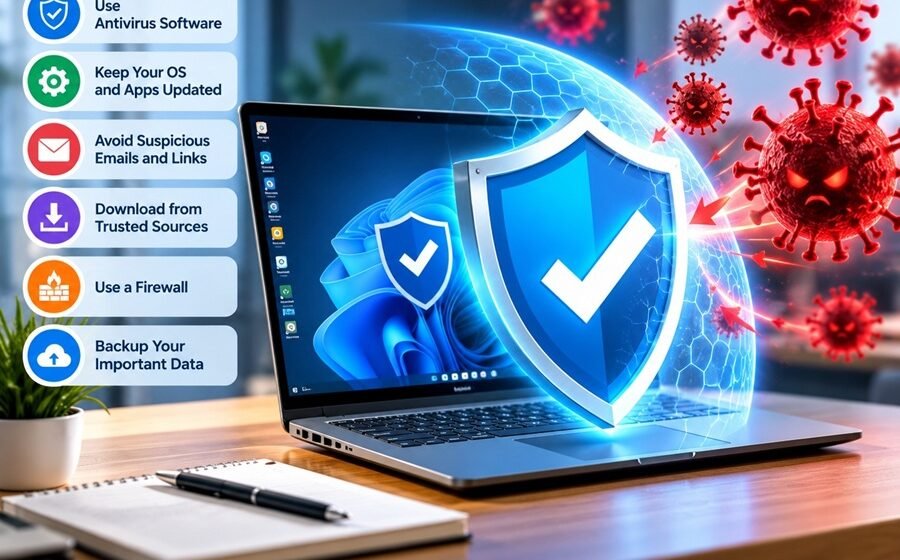

Short answer: To Computer Virus Prevention, install system updates as soon as they appear, keep Microsoft Defender (or a trusted antivirus) switched on, download software only from official sources, treat unexpected attachments and urgent messages as suspect, keep a firewall on, back up your files in more than one place, and protect your accounts with unique passwords and two-factor authentication. These habits would have stopped most of the infections that made headlines over the past decade.
In May 2017, the WannaCry ransomware locked more than 200,000 computers in about 150 countries, including systems across the UK’s National Health Service. The cruel part was that Microsoft had already released a fix two months earlier, in March 2017. Machines that had installed that update were safe. Machines that had not were not.
That story repeats itself in nearly every major outbreak. Viruses rarely win through genius. They win through an unpatched hole, a rushed click, or a reused password. This guide covers the habits that close those doors, with real incidents showing why each one matters.
What Is a Computer Virus, and Why Is Prevention Better Than Cleanup?
A computer virus is malicious code that attaches itself to a legitimate file or program and spreads when that file runs. In everyday conversation, people also use the word for the wider family of malware: ransomware, spyware, trojans, and password-stealing programs called infostealers. The prevention steps below cover all of them.
Cleanup is the expensive route. A ransomware victim cannot simply delete the problem, because the files are already encrypted. A spyware victim must assume every saved password was copied and change them all. Even a mild infection can end with a full Windows reinstall. A ten-minute update or a scheduled backup costs far less than any of that.
How Do You Computer Virus Prevention? Follow Seven Steps
1. Install updates quickly, and replace software that no longer gets them
Updates fix security flaws that attackers already know about. WannaCry used a Windows flaw (patched in Microsoft’s MS17-010 update) that was public knowledge for weeks before the outbreak. Turn on automatic updates for Windows or macOS, your browser, and any app that connects to the internet, such as PDF readers and video-call tools.
Check your operating system’s support status too. Windows 10 reached end of support on October 14, 2025, which means standard security fixes stopped for it. If your PC cannot run Windows 11, look into Microsoft’s extended update options or plan a replacement, because an unpatched system is the easiest target there is.
2. Keep real-time antivirus protection on
Windows 10 and 11 include Microsoft Defender Antivirus, which independent labs such as AV-TEST and AV-Comparatives regularly rate as a solid baseline. Open Windows Security and check that Virus & threat protection shows no warnings. If you install a third-party product, make sure only one real-time antivirus runs at a time, since two can conflict and slow your system.
3. Slow down before you click
The ILOVEYOU worm of 2000 spread to millions of Windows PCs through an email titled “ILOVEYOU” with an attachment named LOVE-LETTER-FOR-YOU.TXT.vbs. Windows hid the real .vbs ending, so it looked like a harmless text file. The trick still works in new costumes: fake invoices, delivery notices, and shared-document alerts.
Before opening anything, check three things:
- The sender’s real address, not just the display name.
- Where a link actually goes. Hover over it on a computer, or press and hold on a phone.
- The pressure. “Your account closes in 24 hours” is a manufactured deadline, and legitimate companies rarely rely on it.
In Windows File Explorer, turn on File name extensions (View, then Show) so a file called invoice.pdf.exe cannot pass as a PDF.
4. Download only from official sources
Cracked software is one of the most reliable ways to catch an infostealer. Families such as RedLine and Vidar have been spread through pirated programs and fake download pages, then used to collect saved browser passwords and cookies. Search engines also show ads that imitate the download page of popular software. Skip the sponsored result, type the publisher’s address yourself, or use Microsoft Store, the Mac App Store, or Google Play.
Even official app stores are not perfect. The Joker malware family repeatedly slipped into Google Play apps by hiding in ordinary-looking utilities and wallpaper apps. Read recent reviews, check the developer name, and avoid apps that ask for permissions they have no reason to need.
5. Leave your firewall on
Windows Firewall and the macOS firewall block unsolicited incoming connections, the route WannaCry used to hop between machines on the same network. Both are on by default on Windows. If a program asks you to disable the firewall to install or run, treat that request as a warning sign.
6. Back up with the 3-2-1 rule
Keep three copies of important files, on two different types of storage, with one copy kept away from your computer. For most people that means the original, an external drive, and a cloud backup such as OneDrive, iCloud, or Google Drive.
One detail matters a lot: ransomware encrypts any drive it can reach. An external disk that stays plugged in can be locked along with everything else. Unplug it after each backup, or use a cloud service with version history so you can restore files from before the attack.
7. Use unique passwords and two-factor authentication
In 2021, attackers shut down the Colonial Pipeline in the United States, causing fuel shortages across the East Coast. According to the company’s CEO in congressional testimony, they got in through a single compromised password on an old VPN account that had no multi-factor authentication. No advanced exploit was needed.
A password manager (Bitwarden, 1Password, or the one built into your browser or phone) lets you use a different long password for every site. Add two-factor authentication on email, banking, and cloud storage first, and use passkeys wherever a site offers them.
How Do You Stay Safe Across Browsing, Email, USB Drives, and Wi-Fi?
Browsing
A pop-up claiming “Your PC is infected, call this number” is almost always a tech support scam, and the FTC has warned consumers about it for years. Close the tab (or force-quit the browser) without calling. Real antivirus warnings come from software already installed on your computer, never from a website. An ad blocker such as uBlock Origin also removes a common delivery route for malicious ads.
Microsoft now blocks macros in Office files downloaded from the internet by default, so attackers have shifted to ZIP, ISO, and HTML attachments and to links that lead to fake login pages. If a message appears to come from a coworker or relative but feels off, confirm by phone or another app. Their account may have been hijacked.
USB drives
The Stuxnet worm, discovered in 2010, spread between isolated computers on infected USB drives. Home users face a smaller version of the same risk. Never plug in a drive you found, and scan any drive that has been used on a shared computer before opening its files.
Public Wi-Fi
Most websites now use HTTPS, so a stranger on the same network cannot easily read your logins. The bigger danger is a fake hotspot with a name such as “Airport_Free_WiFi” set up to funnel your traffic. Confirm the exact network name with staff, avoid banking on public networks, and use a reputable VPN or your phone’s hotspot when you must work on the move.
Are Macs and Phones Safe Without Antivirus?
They are targeted less often than Windows PCs, but not immune. In 2012 the Flashback trojan infected roughly 600,000 Macs through a Java vulnerability, at a time when many Mac owners believed viruses were a Windows problem. Today the same pattern shows up as infostealers aimed at Mac users and malicious apps on Android. Keep macOS, iOS, and Android updated, install apps only from official stores, and review which apps hold broad permissions.
Free or Paid Antivirus: Which Should You Choose?
Free (Microsoft Defender) is enough if you browse mainstream sites, install software only from official sources, and keep Windows updated. It is built in, light on resources, and already performs well in independent testing.
Paid suites make sense in specific situations: a family with children who download games and apps, a freelancer or small business holding client files, or anyone who wants bundled extras such as a VPN, identity monitoring, or a managed ransomware recovery feature. Consider what you would actually use before paying, since many suites include features that duplicate what Windows and your browser already do.
No product replaces the habits above. Antivirus catches known threats, but it cannot stop you from typing your password into a convincing fake login page.
Five Mistakes That Undo Good Protection
- Postponing updates for weeks. The WannaCry patch had been available for two months when the outbreak hit.
- Turning antivirus off “just for a minute” to run a file it flagged. Attackers count on exactly this.
- Reusing one password. One breached shopping site can unlock your email, and your email can reset everything else.
- Keeping the backup drive permanently plugged in, which lets ransomware encrypt it too.
- Testing the backup never. Restore one file every few months to confirm it works.
Setting up a new laptop is a good time to get all of this right from day one. Before installing anything, run Windows Update, confirm Windows Security is active, and check the warranty and software activation status. This walkthrough of buying from a Lenovo Exclusive Store lists what to verify at the counter.
What Should You Do If You Think Your Computer Is Infected?
- Disconnect from the internet by turning off Wi-Fi or unplugging the network cable. This stops data leaving and stops the infection spreading.
- Run a full scan. In Windows Security, choose Scan options, then Microsoft Defender Antivirus (offline scan). It restarts the PC and scans before Windows loads, which helps catch malware that hides while the system runs.
- Change your passwords from a different, clean device, starting with email, banking, and anything saved in your browser.
- Restore from backup if files were encrypted or damaged. Do not pay a ransom, since payment does not guarantee recovery and funds further attacks.
- Call a professional if the scan cannot remove the threat, you handle business or financial data, or you are unsure about reinstalling the operating system.
Your 20-Minute Setup Checklist
You can close the biggest gaps in one sitting. Open Windows Update (or System Settings on a Mac) and install what is pending, then switch on automatic updates. Open Windows Security and confirm protection is active. Install a password manager and change your email password first. Turn on two-factor authentication for your email account. Finally, connect a backup drive or turn on a cloud backup, then restore a single test file to prove it works.
For more plain-language technology guides, browse Chasale
Frequently Asked Questions
How can I prevent a virus on my computer for free?
Use the built-in Microsoft Defender on Windows, turn on automatic updates, keep the firewall enabled, and download software only from official sources. Add a free password manager and two-factor authentication to cover account takeovers.
Is Windows Defender enough in 2026?
For most careful home users, yes. Independent test labs such as AV-TEST and AV-Comparatives have rated it competitively for years. It works best alongside updates, safe downloading habits, and backups.
What is the most common way computers get infected?
Phishing emails and messages are among the most common routes, followed by malicious downloads and unpatched software. WannaCry (unpatched Windows) and ILOVEYOU (an email attachment) show how different the entry points can be.
Can a virus infect my computer without me clicking anything?
Yes. Worms like WannaCry spread through network flaws with no user action, which is why prompt updates and a firewall matter even for careful users.
Do Macs and iPhones get viruses?
Yes, though less often than Windows PCs. The 2012 Flashback outbreak infected roughly 600,000 Macs. Keep devices updated and install apps only from official stores.
What should I do first if I suspect a virus?
Disconnect from the internet, run a full antivirus scan (including a Microsoft Defender offline scan on Windows), and change your key passwords from another device. Contact a professional if the scan fails to clear the threat.
Should I pay for antivirus?
Pay only if you need extras such as a VPN, identity monitoring, or support for several family devices. The core protection in free tools is strong, and paid software cannot compensate for risky habits.