






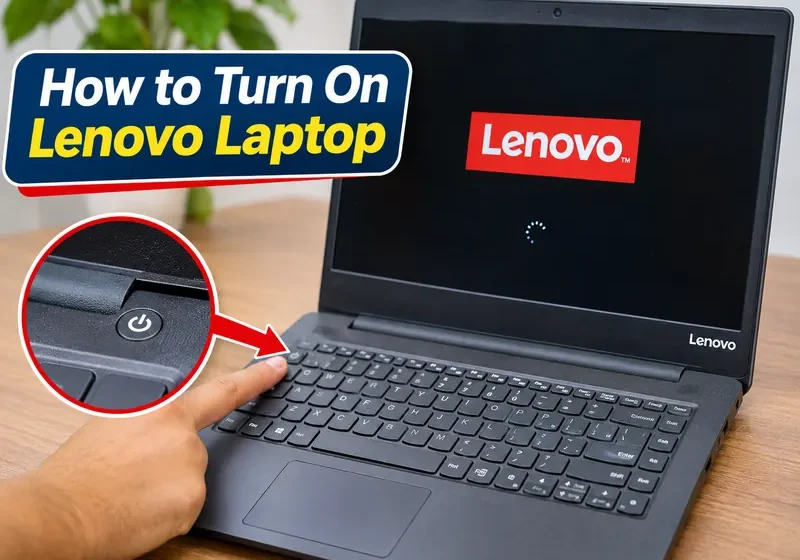
How to Turn On Lenovo Laptop: First Start, Hidden Buttons and What to Do When Nothing Happens

Quick Answer: How do you turn on a Lenovo laptop?
Open the lid, connect the charger, and press the power button once. On a brand-new Lenovo, plug in the adapter for the first start, because some models leave the factory with the battery in ship mode. If nothing happens, charge it, then try a power reset or the Novo button.
Source: Lenovo user guides and Lenovo Support.
How to turn on Lenovo laptop sounds like a one-line answer, until you open a new IdeaPad, press the button and get a black screen. Lenovo laptops have a few quirks other brands do not: a factory “ship mode”, a lid that can start the laptop on its own, and a tiny Novo button most owners never notice. This Chasale guide covers the normal way to switch it on, the first-start rule for new laptops, what each hidden button does, and how to get it running again when it refuses to start.
How to Turn On Lenovo Laptop the Normal Way

For a laptop you have already been using, the steps are simple:
- Open the lid fully.
- Find the power button. On most Lenovo laptops it sits above the keyboard, often at the top right. On some 2-in-1 models it is on the side edge, and on some models it doubles as the fingerprint reader.
- Press it once, firmly. You do not need to hold it down. A short press is enough.
- Watch for the power light and the Lenovo logo. Windows loads within a few seconds.
Whether you search “how to start”, “how to switch on” or “how to put on a Lenovo laptop”, this is the answer for any working machine. The rest of this guide is for the moments when it is not that simple.
How to turn on Lenovo laptop normal steps and first start
Turning On a Brand-New Lenovo Laptop for the First Time
This is where most “my new laptop won’t turn on” panic comes from.
Plug in the charger first. Lenovo’s own setup steps for ThinkPad models follow the same order every time: connect the power cord to the adapter, plug it into the laptop, plug the adapter into the wall, then press the power button. There is a good reason for this order. Lenovo’s Legion Y730 manual explains that the battery is set to ship mode at the factory, and the first time you start the computer you must connect it to AC power to deactivate ship mode, otherwise the computer may not start.
So if your new Lenovo laptop shows no sign of life out of the box, it is usually not faulty. It is asleep in ship mode. Connect the original adapter to a working wall socket and press the power button.
Then charge it fully. Lenovo’s ThinkPad X9-15p user guide recommends fully charging the computer when you use it for the first time.
Finish Windows setup. After the first start, follow the on-screen steps to choose your language, connect to Wi-Fi and sign in. Once you reach the desktop, run the updates covered further down this page.
Why Your Lenovo Laptop Turns On When You Open the Lid
Many owners notice their Lenovo starts by itself the moment the lid opens. That is a feature, not a fault. Lenovo calls it Flip to Start (or Flip to Boot on some models). Lenovo’s user guides explain that many of its notebooks have a sensor that detects the angle of the lid, and if the feature is enabled, the laptop starts up automatically when you open it.
You can switch it on or off:
- In Lenovo Vantage: Lenovo’s Yoga 7 guide lists the path as Device, then My Device Settings, then Power settings, then Flip to Boot.
- In Lenovo PC Manager or the BIOS setup utility, under Configuration, on models that support it.
If you prefer the laptop to stay off until you press the button, for example when it sits in a backpack, turn Flip to Start off.
The Hidden Buttons That Help When a Lenovo Will Not Start

Lenovo laptop Novo button and emergency reset hole explained
The Novo button
Many IdeaPad, Yoga and Slim models have a Novo button. Lenovo describes it as either a small button or a pinhole with a backwards arrow icon next to it. Because it is rarely needed, Lenovo places it in a recessed hole so it is not pressed by accident, and you press it with a straightened paper clip.
Press it while the laptop is off and you get the Novo Button menu, which Lenovo says lets you open the BIOS/UEFI setup, open the boot device selection menu, or open the Windows startup options screen. Choose “Normal Startup” to boot normally. On some newer models without a separate hole, Lenovo’s Yoga Slim 7 ProX guide says you can turn the laptop off and press Fn plus the power button to open the same menu.
The emergency reset hole
Laptops with a built-in battery often have a separate emergency reset hole on the bottom cover. Lenovo’s user guide for the ThinkPad P16v says it helps recover the computer when it stops responding and cannot be turned off with the power button.
Do not confuse the two. The Novo button opens a startup menu. The emergency reset hole cuts and restores power to the system, like briefly disconnecting the battery.
Lenovo Laptop Won’t Turn On? Try These Steps in Order

Lenovo laptop won’t turn on troubleshooting steps
Work through these one at a time. Most no-power problems are solved by step 3.
- Check the charger and socket. Use the original Lenovo adapter, try a different wall socket, and look for damage on the cable and the connector. Lenovo notes that a low-wattage adapter can cause charging problems.
- Charge it for a while before pressing the button. If the battery is completely drained, Lenovo’s no-power troubleshooting starts with recharging the battery. As a practical test, leave it plugged in for at least 30 minutes before trying again.
- Do a power reset.
- If your laptop has an emergency reset hole, unplug the charger and all accessories, then press inside the hole with a straightened paper clip and hold it. Guides from Lenovo and university IT departments that support Lenovo fleets give hold times between 10 and 15 seconds. Reconnect the charger and press the power button.
- If there is no reset hole, Lenovo’s support guidance is to press and hold the power button for at least 10 seconds, then reconnect power and turn it on.
- Try the Novo button. If the laptop powers on but will not boot into Windows, use the Novo menu to try Normal Startup or the Windows startup options.
- Check whether the screen is the problem. If you hear the fan or see the power light but the screen stays black, connect an external monitor. If an image appears there, the problem is the display, not the power.
- Contact Lenovo support or an authorised service point. Lenovo notes that if the reset works, there may be an issue with the power button, and you should contact support. Have your serial number ready; it is usually on a label on the bottom of the laptop.
Lenovo Laptop Update: What to Do After the First Start
Once your Lenovo laptop is on, keeping it updated prevents many of the startup, battery and display problems that send people searching for help. You need two kinds of updates.
1. Windows Update. Open Settings, select Windows Update, and click Check for updates. Install everything offered and restart when asked. Lenovo’s support site recommends running Windows Update before Lenovo’s own update tool.
2. Lenovo updates through Lenovo Vantage. Lenovo’s step-by-step for drivers and BIOS is:
- Open Lenovo Vantage.
- Select the System Update tab.
- Select Check for Updates.
- Install all updates or the ones you choose.
Lenovo sorts updates into critical, recommended and optional. Install the critical ones first.
Why not rely on Windows Update alone? Lenovo notes that device drivers provided through Windows Update might not be tested by Lenovo, and recommends getting drivers through Lenovo’s programs or its support website.
A BIOS warning. If you download a BIOS file manually from Lenovo’s support site, make sure you have selected your exact model. Lenovo warns that installing the wrong BIOS could cause your computer to stop functioning. Keep the laptop plugged in during any BIOS update, and do not turn it off until it finishes.
Where to Get Help in Person
If your Lenovo laptop still will not turn on after the steps above, it may need hands-on diagnosis. Lenovo Exclusive Stores in India list repair services among their offerings, and Lenovo’s own store pages note that authorised stores offer warranty support. Check the specific store’s services before you visit. If you are near Patna, our guide to I Square, the Lenovo Exclusive Store explained covers what to confirm before you go, including the difference between repairs and warranty claims.
Frequently Asked Questions
Where is the power button on a Lenovo laptop?
Look above the keyboard first, then along the side edges. If you still cannot spot it, your model’s user guide on Lenovo’s support site has a labelled diagram of every button and port.
Why won’t my new Lenovo laptop turn on out of the box?
Some Lenovo models ship with the battery in ship mode. Lenovo’s manuals say you must connect AC power the first time you start the computer to deactivate it. Plug in the original charger and press the power button.
How long should I hold the power button on a Lenovo laptop?
A short press turns it on. Holding it is only for a forced shutdown or a power reset, where Lenovo’s support guidance is to hold it for at least 10 seconds on models without an emergency reset hole.
What does the small pinhole on my Lenovo laptop do?
It is either the Novo button, often on the side edge, or the emergency reset hole, usually on the bottom cover. The Novo button opens a startup menu with BIOS and recovery options. The reset hole performs a hardware power reset.
How do I stop my Lenovo laptop from turning on when I open the lid?
Turn off Flip to Start or Flip to Boot in Lenovo Vantage under the power settings, or in the BIOS setup utility on supported models.
How do I update my Lenovo laptop?
Run Windows Update first, then open Lenovo Vantage, go to System Update and select Check for Updates. Install critical updates first and keep the laptop plugged in while updates install.
Start It Right, Keep It Updated
A Lenovo laptop that will not switch on is usually a charging or ship-mode issue, not a broken machine. Plug in the original charger for the first start, use a short press of the power button, and keep the Novo button and reset hole in mind for the rare days it misbehaves. Once it is running, update it through Windows Update and Lenovo Vantage. For more practical tech help, read Chasale’s guide to computer virus prevention or browse our technology guides and how-to guides.
Disclaimer
This article is for general information only. Button locations, menu names and reset steps vary by Lenovo model, so check your model’s user guide on Lenovo’s support website. Opening the laptop or attempting internal repairs may affect your warranty. Chasale is not affiliated with Lenovo.
Last updated: 28 November 2026
Sources
- Lenovo: ThinkPad X9-14 Gen 1 User Guide, Set up your computer
- Lenovo: ThinkPad X9-15p Gen 1 User Guide, Set up your computer
- Lenovo Legion Y730 manual, initial setup (via ManualsLib)
- Lenovo: Why does my computer start automatically when I open the lid
- Lenovo: Enable or disable Flip to Boot (Yoga 7)
- Lenovo Support: Introduction to NOVO button, ideapad
- Lenovo: The Novo Button menu (Slim 5)
- Lenovo: ThinkPad P16v Gen 2 User Guide, Bottom view
- Lenovo Support: Troubleshooting No Power Issues
- Lenovo Support: Device does not restart after BIOS update
- Lenovo Support: How to get the latest drivers and BIOS with Lenovo Vantage
- Lenovo Support: How to update system BIOS
- Lenovo: How to update system BIOS, Windows
- Lenovo: Keeping your computer current
- Lenovo India Store: Offers and store FAQs

[…] How to Turn On Lenovo Laptop: First Start, Hidden Buttons and What to Do When Nothing Happensby ChasaleNovember 28, 2026 […]